
Understanding the Blooket Dashboard for Interactive and Effective Teaching
Welcome to Blooket, an innovative and creative platform that played an integral role in transforming classroom learning and engagement for both teachers and students. With the passage of time, it has become a great talk of the town with over 20 million active users, and the trend continues to grow. Due to its great popularity, everyone is quite curious about this fun-based educational game.
Through the Blooket dashboard, you can explore a wide number of gaming modes and features to make the learning and classroom as ideal as anyone can think. The Blooket dashboard serves as a central entity in maintaining discipline and order during sessions, offering full control to educators to manage and design the quizzes, games, and challenges. Moreover, it also enables teachers to have information about the students’ weaknesses, strengths, and grey areas, helping teachers to improvise and improve lessons.
This guide will explore the Blooket dashboard, Blooket account, gaming modes, and tips and tricks to troubleshoot issues and improve the gaming experience.
Understanding the Blooket.com Dashboard
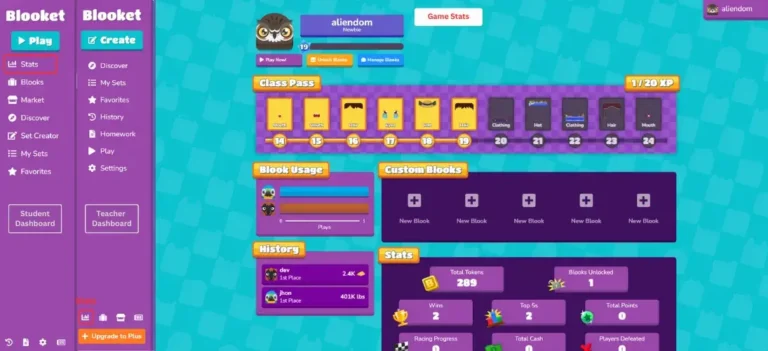
Just like the brain commands the body, in a similar fashion the Blooket dashboard is the heart of the platform, assigning privileges to educators to create, manage, and control educational activities. Due to its user-friendly interface, you can easily interact with Blooket game modes, hosting options, and the Blooket shop as well. The agenda behind the user-friendly experience is that anybody, whether an expert or a newbie in digital stuff, can learn with modernity, curiosity, and entertainment. Let’s have a look at the Blooket.com dashboard navigation to control and customize the classroom experience.
Navigating the Blooket Dashboard
The Blooket dashboard, as mentioned earlier, is designed simple, making it easy for students to interact and absorb the classroom activities with significant note. From creating games to hosting and joining games, everything is under one click once logged in.
Dashboard Layout
The layout of the dashboard is clean, appealing, and divided into various sections for easy interaction. On the left panel, users can access options like Discover, My Sets, Favorites, and History, while the top menu provides quick links to Create, Host, and Set Challenges or Games. Similarly, the main area displays the Game Sets, Updates, and Student Reports, allowing teachers to monitor progress and manage games without being hectic.
Key Features Overview
Being a Blooket host comes with a range of tools and options to make teaching more exciting and efficient. As a host, you can create games from the dashboard according to the students’ caliber and the demands of the subject. Secondly, student tracking and content management can also be done to improvise teaching and learning
Customizing Your Blooket Dashboard
Personalization Options: The Blooket dashboard can be customized according to one’s teaching and learning preferences. Educators or players can choose different themes like the Pirate Pack, customize layout colors, and select avatars to reflect their creativity and vibrancy. This is not just a reflection of someone’s color scheme; rather, it represents how ideally someone wants to shape their classroom—so choose your steps wisely.
Setting Preferences: From the dashboard, one can also set preferences like notification alerts, privacy settings , most-used game modes, and other related options. Educators can also adjust classroom settings such as time limits, question order, and difficulty level to maintain balance in the learning process. Simply put, these minor settings make the teaching experience more productive for both teachers and players.
How Blooket Dashboard Works
The dashboard is a sort of gateway or control panel that helps educators supervise all the activities in the classroom, whether they are learning-based or entertainment-focused. The dashboard enables them to experience seamless and focused learning.Here, how it works.
Game Creation Process by Blooket Dashboard
Blooket play offers a simple but dynamic game creation expirence. The teachers can start by just clicking on the create button, whether they want to create from scratch or import existing ones. The platform allows the embedding of text, images, and audio for making quizzes, questions, and challenges. Once the basic game is ready, the host can customize it accordingly by adjusting the time limits, speed, and other options to make the learning more enjoyable.
Selecting Game Modes
Once you set the questions, the educator or host can select a particular Blooket play mode from a variety of options. Each mode offers a unique gameplay experience — from gold hunting to strategic challenges like Tower Defense or Café, its up to whether you want to play classic or team mode. This feature and flexibility to switch between choices help students build concepts without getting bored.
Designing Questions
It is the juncture where one can truly reflect their creativity, even though it’s a straightforward process. The teacher or organizer can craft MCQs, challenges, and true/false questions according to their curriculum. Here, multiple options, visual aids, and explanations can be added to questions in order to enhance visual comprehension. Moreover, the Blooket dashboard also includes a feature to import data from spreadsheets or similar sources, saving both time and effort.
hosting and managing of class
Once you are done with preliminary stuff like making of questions and setting of mode, then comes the stage of hosting a session. The controller can easily host and manage the game from the Blooket dashboard. The hosting process is simple and easy as the host has to invite the participants by sending them a class link or game code. When all the participants are done with joining, the teacher or host can track real-time player progress, scores, and mistakes, which is really pivotal for future reporting and progress.
Thats , how blooket dashboard works by offering a decent number of possibilities to interact.
How to Access the Blooket Dashboard?
Accessing the dashboard is simple and quite easy. First, you need to visit the official site and open your teacher or player profile in case you are an old user. For a newbie, it is crucial to sign up for Blooket Join.
Key Features of the Blooket Dashboard
This game has a decent number of features to enhance or supercharge teaching. By analyzing these, you have a greater chance to make your class more interactive, productive, and learning-friendly. Here are some notable features that make this game a point of discussion.
Game Modes
Blooket game provides a variety of modes to satisfy the needs of different learning styles, transforming traditional learning into a modern and exciting experience.
Classic Mode
In the Classic mode, the player answers questions in a straightforward manner via a quiz format. Correct answers earn them points, with the focus on intellectual growth and retention.
Team Mode
Whereas the Team Mode encourages collaboration and teamwork by grouping players into different teams, the basic agenda is to work together, solve problems, and win as a unit. This cumulative approach improves communication, social respect, and highlights that everyone is endowed with unique merits.
Subscription Plans
Blooket offers different subscription plans with various features to cater to the needs of both students and teachers. Understanding these features helps you decide which plan is best and most suitable to manage your class.
Free vs. Premium
The Basic plan includes features like joining games, creating questions, and playing standard modes without costing a single penny. In contrast, the Premium plan offers advanced features, including solo games, new themes, characters, student performance analytics, and other related tools.
Benefits of Upgrading
Upgrading to the Premium plan gives you extra features such as the ability to customize settings, merge question sets, embed audio questions, and access more detailed performance analytics. By upgrading to Premium, teachers gain better awareness of class performance, students’ strengths, and areas of struggle.
How To Create and Manage Your Sets from Blooket Dashboard?
The Blooket dashboard is a central entity for both teachers and students, as they can create, organize, and manage their question sets by using this. Similarly, the dashboard allows creators to prepare, organize, and manage educational content without any much labour.
Blooket Dashboard My Sets
The My Sets section on the dashboard is all about the data of sets you have created earlier and marked as favorites. From here, you can view, access, and organize your sets quickly. Educators can also track the records of previously used sets to maintain balance and keep the element of curiosity alive.
Managing Sets on Blooket Dashboard
Managing sets on the dashboard is quite easy. You can edit questions, update answers, embed images, and adjust difficulty levels to harmonize your class’s intellect with the challenge. Likewise, tasks can be organized, merged, and duplicated for the seamless conduction of sessions. Simply put, the features of easy navigation and user-friendly interaction enable teachers to work creatively without being frustrated by technical issues.
Benefits of Using Blooket Dashboard in the Classroom
The Blooket dashboard offers a decent number of benefits that are pivotal in transforming the orthodox learning into a more engaging, fun-based learning. It not only helps teachers to coin creative games but also enhances students’ knowledge, collaboration skills, and improvises understanding. Here is the list of Blooket play benefits.
Enhancing Student Engagement
The game offers an addictive and attention-grabbing gameplay, encouraging students to participate, interact, and learn in a friendly manner. The competition and time limits keep students attentive and focused during sessions.
Interactive Learning: As explained earlier, it is an activity-based game that relies on the active participation of students through quizzes, challenges, and question–answer sessions — contrary to other games that are based on passive listening. This interactivity makes it far more valuable than others.
Motivation and Competition:Everything in the present world is invented because of someone’s motivation or the competition between different nations. This concept can also be felt here in the form of leaderboards and rewards, which are assigned upon winning.The students can also choose the type of competition, whether they prefer to play in teams or go for the classic mode, which is traditional and quiz-based.
Supporting Diverse Learning Styles
No two students are equal in terms of intellect and in other regards everyone is unique and different. This concept is embedded in the Blooket app right from its development. It offers multiple learning styles to suit every student, whether visual, auditory, or otherwise. By using this feature, you have the chance to make your class a standout performer in exams.
Visual and Auditory Learners: The Blooket offers stunning color visuals and attention-grabbing audio tracks to capture students’ focus and engage their minds for effortless learning and long-term retention. By embedding these in your classroom, you will surely win the hearts of visual and auditory learners.
Kinesthetic Activities:The elements of kinesthetics are also present, such as clicking, choosing answers, and selecting game modes. These provide kinesthetic learners with a sense of engagement and interaction, which is significant for maintaining their focus.
Tips for Effective Usage of Blooket Dashboard
Strategy and critical thinking are the watchwords of this game. To get the most out of this fascinating educational tool, educators are recommended to use the dashboard strategically for lesson planning, class conduction, organization, and student motivation. With the right steps and moves, you can make your teaching powerful, influential, and highly productive for your students.
Planning Your Lessons by Blooket Dashboard
Planning is key in every domain of life. Here as well, teachers need to plan the lessons by using the following recommendations.
Integrating Blooket with Curriculum
First things first, educators need to integrate the Blooket dashboard or game with the curriculum authorized by the relevant authorities. Start by identifying key topics and incorporate them into the gaming experience to help polish your students’ skills. For example, if you’re teaching vocabulary, design a puzzle or word game where students can form words and discuss their meanings. This approach not only enhances learning but also encourages critical thinking and deeper understanding in education.
Timing and Pacing
These are the pivotal factors while using this game. It’s up to the teachers whether they want to leverage this innovation before or after the lecture. Moreover, teachers can also set limits, increase or decrease difficulty levels to balance competition and achievement. These controls are not only effective for students but also for educators in managing classes.
Encouraging Student Participation
Teachers are considered path givers. Being a teacher, it is obligatory to encourage students to participate, and the dashboard itself provides the tools to promote active involvement of students and players. To maintain the decorum and spirit.
Incentives and Rewards
To keep the students intact and motivated, try to reward them, especially the top performers and those who are showing improvement. The host can give them badges, in-game points, and other rewards to prolong their enthusiasm and interest in the game.
Creating a Collaborative Environment
To inspire and get the most out of the students, try to foster and inculcate collaboration or teamwork. By opting for the team mode from the dashboard, it is crucial for students to act as a team in order to understand the importance of society and teamwork.
Educational Value of Blooket Dashboard
Keeping all the features like interactivity, engagement, and fun aside, the thing that stands out the most is the educational importance of this game. It not only entertains the students but also has a strong alignment with modern teaching goals, which are entirely based on cognitive growth, creativity, and feedback.
Aligning with Educational Goals
Previously, it was discussed that for effective usage of the Blooket game, teachers need to integrate this game with the students’ syllabus. Here as well, if educators do so, it will make it more feasible for them to create quizzes, questions, and other content for the development of certain skills. This alignment not only assists educators but also helps polish students’ inner traits like critical thinking, decision-making, and focus, along with ensuring high retention rates.
Feedback and Assessment
The other great educational feature that Blooket offers is insights and analytics on student performance. As a Blooket host, educators can track real-time student data, including their areas of weakness and strength. Teachers can also analyze both individual and group performances supported by data. These analytics are highly productive, as they enable educators to modify and adjust their lessons or classes according to students’ intellect, grey areas, and preferences.
Troubleshooting Common Issues With Blooket Dashboard
Despite the fact that the Blooket dashboard is designed to be simple and smooth, sometimes issues and errors may occur due to technical failures. Here are some common dashboard-related problems and quick hacks to solve them.
Blooket Dashboard Login Issues
At times, login issues may occur. In such situations, you should check a few things like your internet connection and ensure that you’re entering the correct email and password. Likewise, clear your browser cache so it can load updated data. If the issue is minor, these steps will likely solve it. However, if it persists, try resetting your password by clicking on the “Forgot Password” option.
Why Can’t I Access My Blooket Dashboard?
Secondly, sometimes due to browser maintenance or account verification issues, this problem may occur where you can’t access the dashboard. In such cases, try updating your browser, removing extensions that are blocking scripts, and verifying your account through the link sent by Blooket Support.
Blooket Dashboard Host Not Working
Last but not least, sometimes you may encounter problems like the host not working. This could be due to an unstable internet connection or a system update. In such cases, try to ensure a stable internet connection, restart your browser or device, and check whether there is any official update running or pending.
conclusion
In a nutshell, the Blooket dashboard is the gateway to one of the most advanced and innovative platforms, which is quite productive for both students and educators. Students can enhance their knowledge by playing games, while teachers can monitor their progress as Blooket hosts. One can enjoy plenty of features such as login, creation of exercises, and similar stuff. Occasionally, technical issues and errors may arise, but they can be solved by taking some simple steps like ensuring a stable internet connection and clearing the cache. So, if you are a teacher, it is recommended by our site to include this platform in your classroom to supercharge productivity and leverage modernity.
The Blooket dashboard is the main controlling hub where both players and educators can monitor, create, and organize different sessions and games. It is quite easy to access, visit the official Blooket site, log in with your student or teacher ID, and then click on the Dashboard option in the top menu. From the dashboard, one can create, edit, or manage question sets, as well as host games, assign homework, and track student performance. In such a case , all you need to do is just check your internet connection, ensure you are inserting a correct password or email. If the issue persists, try to cache browser memory and restore password Absolutely. You can share your question set publicly or privately as per your preference. In case of public sharing, others can use it too What is the Blooket Dashboard?
How can someone access the Blooket Dashboard?
What can I do on the Blooket Dashboard?
What should I do if I can’t log into my Blooket Dashboard?
Can I share my question sets with others on Blooket?