
Blooket Host
Everything You Need to Know to Host a Game
It is always said that revolutions bring change. You have plenty of options to think upon by keeping this view in mind. Be it the scientific revolution, the industrial revolution, or others, they all have one thing in common: novelty.
At present, Blooket has revolutionized the classroom. It has injected interaction and fun into education by dismantling the myths that learning can’t walk side by side with playfulness. To implement all the fun and entertainment, one has to be a Blooket host and host Blooket sessions.
In this regard, this piece of writing will guide you on how to become a Blooket host, how to organize sessions, and monitor students’ progress, along with tips to be an effective Blooket game host. Let’s have a look!
What is Blooket Host?
A Blooket host is a person or authority who is assigned tasks like the creation of games, management of classes, and conduction of sessions on the Blooket app. Being a Blooket host, you have full authority or control over the game. As a moderator or administrator you can customize the settings, put limits, change questions, assign homework, and track students’ performance along with their scores. In short, being a Blooket game host enables you to make learning more fun-based, conceptual, interactive, and engaging while keeping an active eye on students’ performance in real time.
Key Responsibilities of a Blooket Game Host
Once you become a Blooket host, you are responsible for the following tasks:
- Creating and Setting Up Games
As an organizer, it’s your responsibility to choose the questions, select difficulty levels, and set time limits and game modes. This ensures that the game aligns with learning objectives and is productive for students.
- Sharing and Managing Sessions
After setting up the game, the host needs to share the game code with participants or students so that they can join. Once they are in, the host monitors their activity to ensure they are following instructions and engaging properly. - Managing Game Flow
Hosts can start, pause, or end the game at appropriate times. He or she can also adjust settings like time limits or question sequence if the situation demands. - Analyzing Student Performance
Blooket provides real-time performance data, allowing hosts to see how well students are playing, identify areas of improvement, and track progress effectively. - Troubleshooting Errors
Last but not least, hosts handle issues arising from expired codes, login problems, or network instability. Ensuring smooth gameplay is part of the host’s responsibility.
As a matter of fact, hosting a game on Blooket is very easy. First, you have to log in to your Blooket account on Blooket.com. From there, you can quickly set up a game and share the code with participants from the Blooket dashboard so that they can join. Once they have joined, you can administer and organize all the activities as a Blooket host.
How to Host a Blooket Game – Easy Peasy!
Hosting a game on the Blooket platform is super easy, whether you’re a teacher, a student, or just someone adding a creative vibe to the learning process. The process is simple, though it can slightly depend on your role, but the key steps remain the same.
Steps to Host a Blooket Game as a Teacher?
Here are the following steps that can be used to host a game as a teacher:
- Sign In to the Dashboard: First things first, start by signing in to your Blooket dashboard through Blooket.com, where all the tools and features are available to host and conduct sessions.
- Create or Customize a Game: It’s up to you whether you want to create a new game or customize an existing one. If you want to save time, try using previous templates. If you want to show creativity, create a new game from scratch.
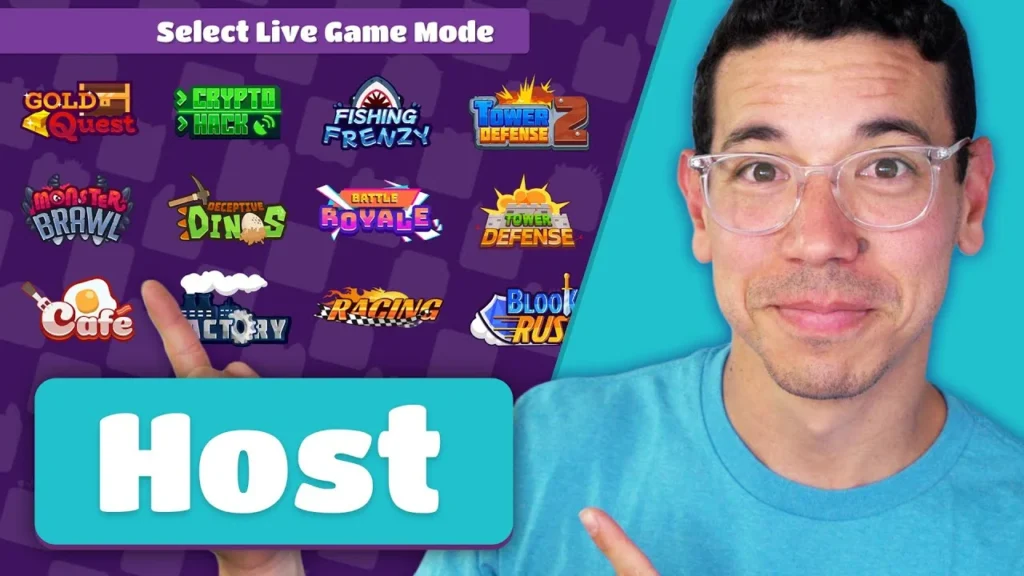
- Set Game Mode: From your Blooket account, you have numerous options for game modes such as Tower Defense, Racing, etc. Choose the mode that aligns with your lesson objectives.
- Host the Session: Click the Host button and share the unique game code with the students so they can log in and join the Blooket session.
- Monitor Performance: Once students have joined, track their performance, keep them motivated, and encourage engagement throughout the game
How to Host a Blooket Game as a Student?
In general, students are not the hosts, but at times, under certain scenarios, they may need to host the games as well. Here’s how students can host a Blooket game.
- Seek Permission: Practically, students need permission from educators to access the settings required to manage a session.
- Set Up the Game: Upon receiving permission, students can log in to their Blooket account, create the game, set limits, and configure other related settings.
- Share the Blooket Code: Once the basics like questions, game modes, and settings are set, the student can share the Blooket code with other students so they can join the game.
In reality, the chances of students hosting are quite rare, but it can be an exciting experience for those who want to take on leadership roles.
Ways to Host a Blooket Game Without an Account.
Courtesy of the platform’s flexibility, one can host a game even without having an account, though this feature comes with certain limitations. Here’s how to do it:
- Visit the Official Site: Go to Blooket.com and continue using Guest Mode instead of signing up for an account.
- Host a Session: Depending on the permissions allowed, the user can create and customize questions, set game modes, difficulty levels, and time limits.
Generate Code and Monitor the Session: Once the game is ready, generate the game code, share it with participants, and monitor their progress during the session.
Is it possible to Host and Play Blooket at the Same Time?
Absolutely yes, one can host and play Blooket at the same time. As a host, you can create and manage the game while also acting as a player. However, in such scenarios, you need to remain extra vigilant because you’ll have to manage the game flow, monitor and track participants, and play effectively at the same time.
Tips to Use the Blooket Dashboard for Hosting.
The Blooket dashboard is the central hub for the effective management of the session. By using this, you can have creative games, interactive sessions, and long-lasting learning. Here are some tips to host Blooket effortlessly.
Dashboard Navigation for Blooket Host:
The user experience at the Blooket dashboard is quite easy and user-friendly. It provides users with quick access to features and essential tools to make learning impactful.
- Game creation tools: From the main panel, you can create games, customize saved sets, upload your questions, and check students’ reports. The key thing is to always choose those game types that are aligned with the syllabus.
- Game or player settings: Similarly, the dashboard enables users to implement their desired settings like game speed, question difficulty, question sequence, and number of participants.
- Tracking and monitoring: Last but not least, from the dashboard, the Blooket host can track students’ performance, their level of interaction, scores, and areas of strength and weakness. This feature is pivotal for improving lessons and techniques.
Undoubtedly, the Blooket dashboard is a gateway to a new world,the world of creation, learning, and enjoyment. But the efficiency of this activity is more or less dependent upon the Blooket host.
Blooket Host Settings in the Dashboard:
To facilitate and make the experience error-free, Blooket has a specific and dedicated page called Blooket Host Settings, from where all aspects of the game can be controlled. It allows the Blooket host to customize and set preferences according to the situation and the students’ intellectual levels to ensure a productive session.
Here are some key recommendations to consider:
- Game Options Modification:
From this option, the host can change the game mode, set or upload new questions, adjust the number of attempts allowed, and set time limits. Implement these settings as per your session’s requirements for better engagement. - Tracking Results:
Another great setting is tracking. By enabling this option, the host can monitor each student’s individual score as well as the overall team performance. This is essential for identifying areas of improvement and refining future lessons. - Managing Game Flow:
Lastly, the settings also allow you to manage the game flow. It’s up to the host when to start, pause, or end the session. Similarly, if needed, you can add or remove question sets during gameplay.
In short, the Blooket Host Settings page empowers the administrator with strong control over the game, helping to manage and organize activities effectively — whether they are educational or purely fun-based.
Technical considerations of Blooket Hosting.
Blooket offers some technical features that need to be considered for effective utilization of the platform. These aspects not only enable users to have a better understanding of the games but also help in joining and organizing sessions efficiently
Hosting a Blooket Game from Mobile.
As mentioned earlier, Blooket is quite a flexible platform, and of course, you can host a game anytime, anywhere, from your mobile device by following a few simple steps: visit the official site, log in to your Blooket account, create a new game or use a saved set, and then share the game ID with participants. And boom, you’re a Blooket host right from your mobile!
This flexibility ensures that Blooket games are not dependent on specific devices or locations to operate.
How to Host a Blooket Game for Free?
Blooket offers a number of subscription plans ranging from basic to premium. With the basic plan, you can host a game without spending a single penny, but it comes with some restrictions in terms of resource usage.
All you need to do is set up a Blooket account using any login method, whether it’s a school ID, Google account, or another option. By doing so, you gain access to games, quizzes, and other features, such as tracking student performance.
On the other hand, the paid version provides advanced features and additional tools. However, the free plan is perfect for casual use and classroom sessions.
How to Host a Blooket Game Using a Code?
To enter a Blooket game using a Blooket game code, follow these steps:
- Set Up the Game: Log in to your Blooket account, create the game, and customize the settings according to your needs.
- Host the Session: After setting up, click on the “Host a Session” button. The system will generate a unique game code. Copy this code and share it with participants so they can join Blooket game.
- Manage the Session: Once participants log in, they are under your supervision. Keep them engaged and motivated for learning.
The game code feature is a remarkable idea that allows navigation-free participation, making learning smooth, interactive, and efficient.
How to Host a Blooket Game Without Signing In?
Undoubtedly, signing in Blooket account provides many features and privileges. Even though you can still host a Blooket game, it comes with certain restrictions. Here’s what you have as a guest user:
- Basic Features: Hosting without sign in blooket is easy, but it does not allow you to use the proper and advanced features. Rather, it will stick you to basic features for casual activities.
- Quick and Simple: As mentioned earlier, it is perfect for casual and non-serious activity, as users do not need to dwell on the hectic processes of creating accounts and other stuff. This feature enables them to play Blooket games without hassle.
- Account Benefits: Benefits come with drawbacks. Similarly, here, without an account, you cannot track or monitor your progress or save data. It is good for non-serious people, but for professionals, it is mandatory to have an account
It is a simple solution to check the features of the platform, but for reliable and advanced usage, it is very much necessary to have a Blooket account.
Conclusion
In a nutshell, to enjoy the proper features and tools of the Blooket game, it is very much necessary to have a good and strategic Blooket host who can understand the gaming and questioning psyche, along with maintaining competition and balance. All this can be done by using the Blooket dashboard.A Blooket host can enter the game with a variety of options, like guest mode, school accounts, Google accounts, and others. Similarly, the game also provides hosting rights to students to enhance their leadership roles.So don’t just keep thinking about how to host, jump in and enjoy the learning while transforming others’ experiences.
Can students host a Blooket game?
Yes, students can host a game, but it only happens when a teacher allows them to do so. Upon permission, they can enjoy the full hosting features.
How do you host a Blooket game on mobile?
Hosting a Blooket game on mobile is similar to using a PC or laptop, as the dashboard stays the same — only the device differs.
How to host a Blooket game without an account?
Absolutely, someone without a Blooket account can host a game as a guest, but with limited features and resources available.
What is host plus bonus in Blooket?
Host Plus Bonus is a reward that is awarded to hosts for running a smooth and successful session.
Why won’t Blooket let me host a game?
It can happen due to a variety of reasons, such as network issues, server maintenance, cached data, or cookie problems.
How to play Blooket as a host?
You can play the game as a host, but you have to stay vigilant because both activities demand attention and focus.